How to use Rondin
Short, step-by-step answers for the things people do most. Everything starts from the main screen, the feed. The house button at its top left opens Home, where Places, the Map, Search and Settings live.
1. What Rondin asks permission for, and why
Every permission is optional. Rondin never asks at launch: it asks only when you use something that needs it, and explains first. With everything turned off you can still make places, write notes and to-dos, add photos by hand, and search.
Location, while using the app
Asked the first time you open the map, tap the location arrow on a new place, or choose Where I am from the feed's title. It shows where you are on the map, lets a new place start where you are standing, opens the feed on the place you are at, and suggests that place for a new note.
Location, Always
Asked only when you turn on Arrival alerts in Settings, and needed only for that. With Always, iOS tells Rondin when you cross into one of your places, even with the app closed, so it can show you what is waiting there. Rondin does not track where you go, and your location is never sent to the developer or anyone else.
Notifications
Asked right after, also when you turn on Arrival alerts. An alert reaches you as a notification, so without this permission it cannot.
Photos
Asked only if you turn on automatic filing (see Get your photos in). iOS has no read-only photo permission, so its question says read and write, but Rondin never adds to, changes or removes anything in your library. It reads each photo's location, and opens the picture only when that location falls inside one of your places. Full Access and Limited Access both work.
The Photo button, which adds photos by hand, needs no permission at all.
Changing your mind
Each permission can be changed any time in the iPhone's Settings app under Apps › Rondin. Where Rondin needs a permission it does not have, its own Settings screen shows an Open Settings button that takes you straight there.
2. Add a place
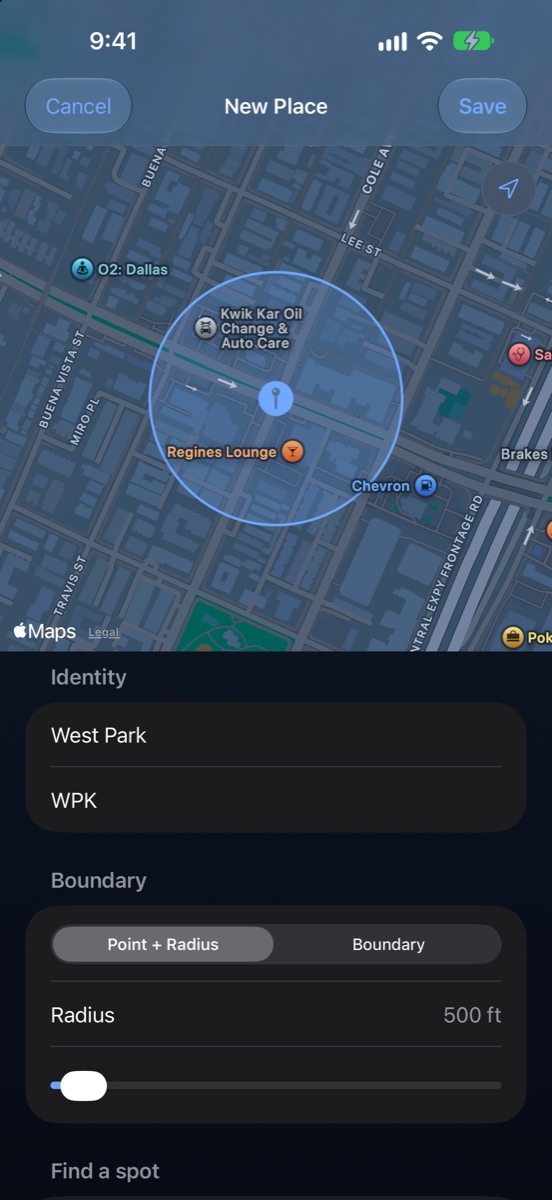
The first time you open Rondin, the New Place screen appears on its own. After that:
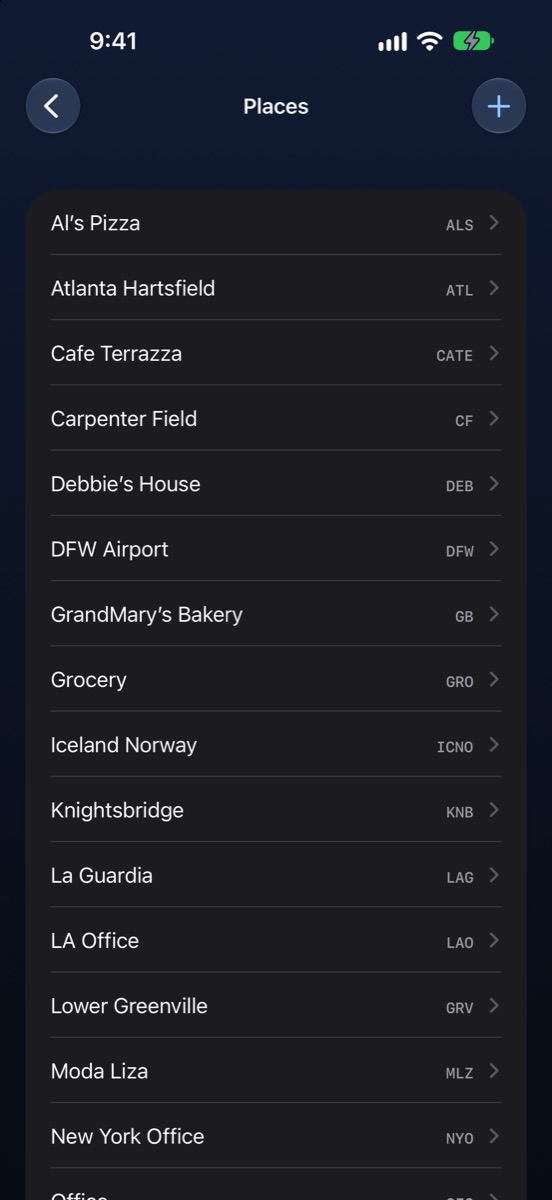
- Tap the house button at the top left to open Home, then tap Places, then + at the top right. (Or Home › Map › Add Place.)
- Set the spot: tap the map where the place is, tap the location arrow at the top right of the map to use where you are standing, or type an address under Find a spot.
- Under Identity, type a Name. Rondin suggests an Abbreviation of 2 to 5 characters, which is what shows on your cards; change it if you like.
- Under Boundary, leave Point + Radius and drag the Radius slider until the circle covers the place. For an odd shape, choose Boundary and tap the map to drop at least three corners; drag a corner to move it, and Undo Point removes the last one.
- Tap Save.
To change a place later, open Home › Places and swipe across it for Edit, Archive (hides it without deleting anything) or Delete.
3. Get your photos in
By hand, with no permission
- Tap Photo at the bottom of the feed and pick photos or videos.
- Rondin reads the location saved in each one and files it to the place it was taken. A short message tells you how it went, for example "3 imported, 1 needs a place".
Adding photos from a place's own page files every one of them to that place, wherever they were taken.
Photos that need a place
A photo with no location, or taken outside all your places, waits under a Needs filing banner at the top of the feed. Tap the banner, then tap the circle on a card and pick its place. To file several at once, tap Select, choose them, and tap Place….
Automatically
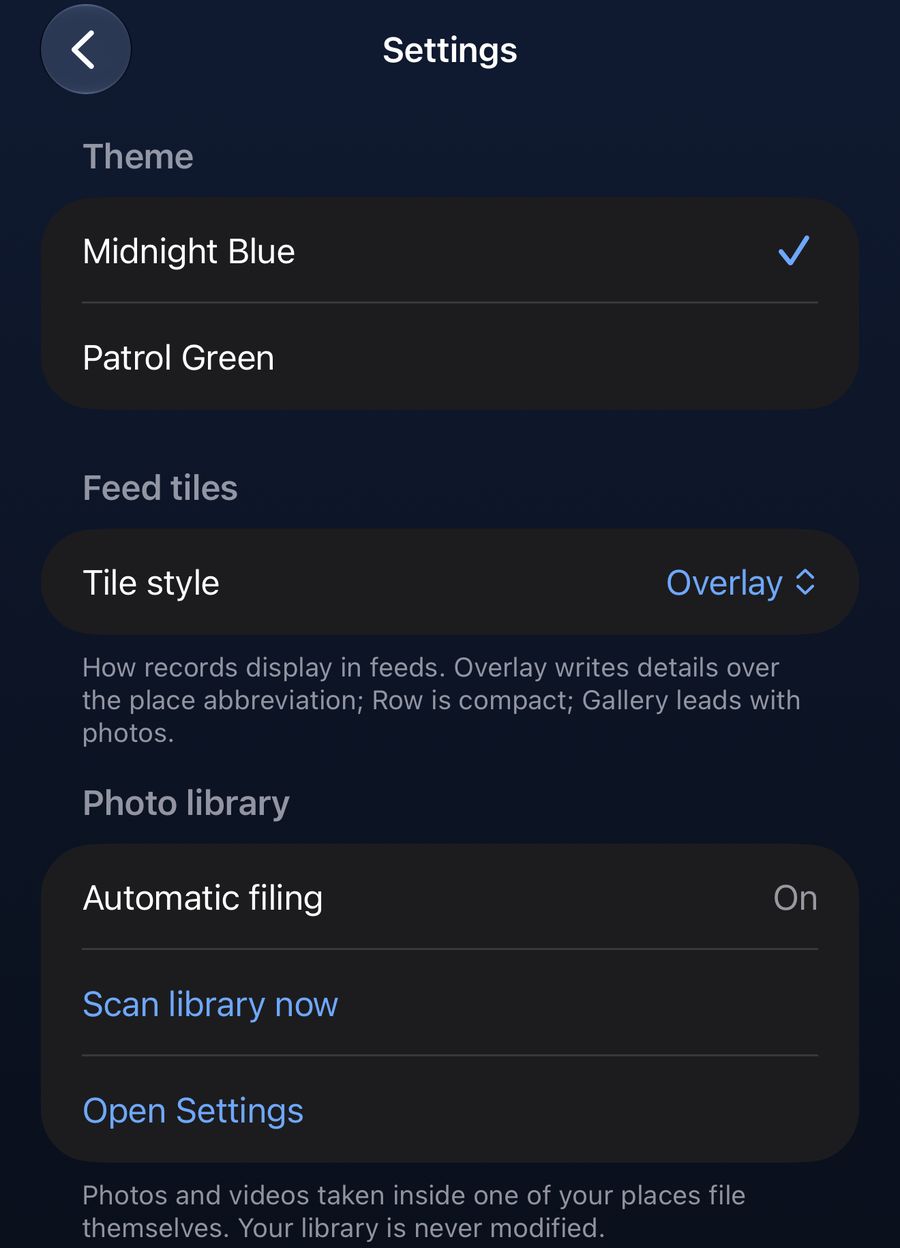
- When the feed shows a card saying File your photos automatically, tap it and then Turn it on. Or go to Home › Settings and, under Photo library, tap Turn on photo access.
- Answer iOS's photo question with Full Access or Limited Access.
From then on, every photo and video you take inside one of your places files itself, each time you open the app. Scan library now in Settings checks straight away.
4. Write a note
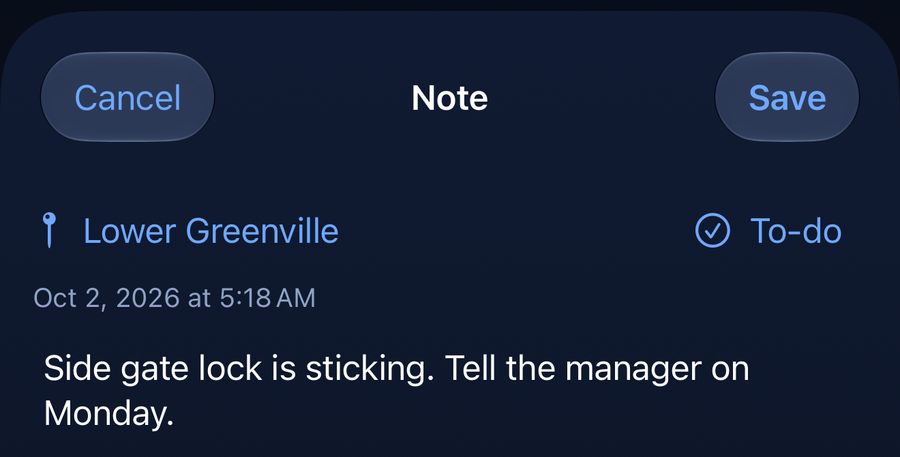
- Tap Note at the bottom of the feed.
- Check the place at the top left. Rondin suggests the place you are at or nearest to, or the last one you used; tap it to choose another, or No Place.
- Type, then tap Save.
The To-do button at the top right turns the note into a to-do (see Make a to-do).
To add tags, change the place or the date, or delete a note, open it, tap the ••• button at the top, and choose Edit Details or Delete.
5. Set an arrival alert
An arrival alert is a line of text left at one of your places. The next time you arrive there, your phone shows it, even with the app closed, and on your Apple Watch too.
First, once: turn alerts on
- Go to Home › Settings and turn on Arrival alerts.
- Rondin explains what it needs. Tap Turn On.
- When iOS asks about location, allow it, and choose Always when iOS offers it. Without Always, alerts cannot reach you when you arrive.
- When iOS asks about notifications, tap Allow.

If the text under the switch starts with Paused, it names the permission that is missing; tap Open Settings to fix it.
Leave an alert
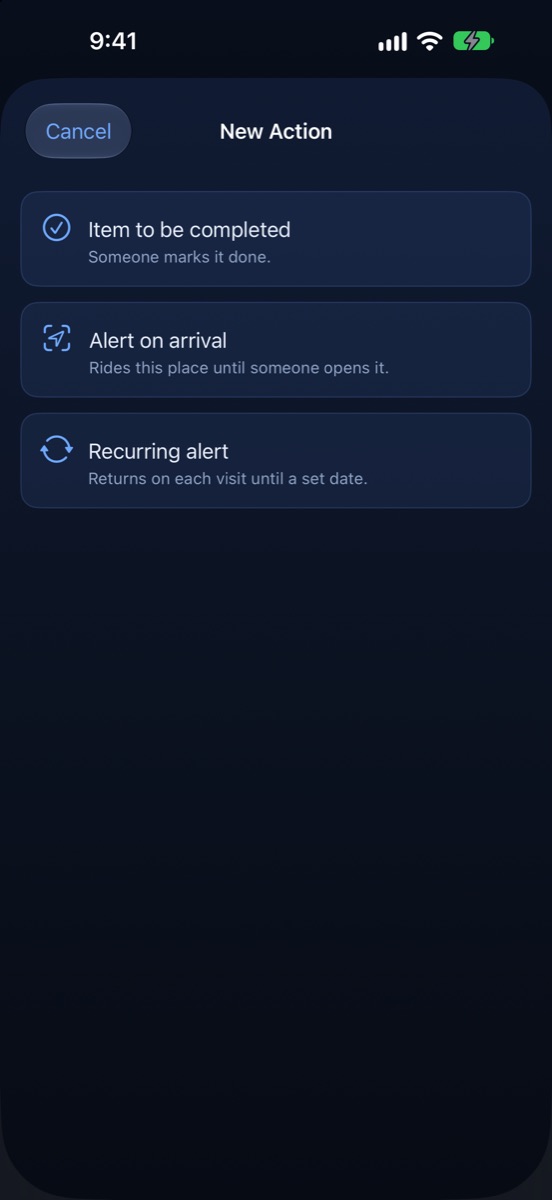
- In the feed, tap the Action tab, then New action.
- Choose Alert on arrival.
- Type the reminder, tap No Place to choose the place it belongs to, and tap Save.
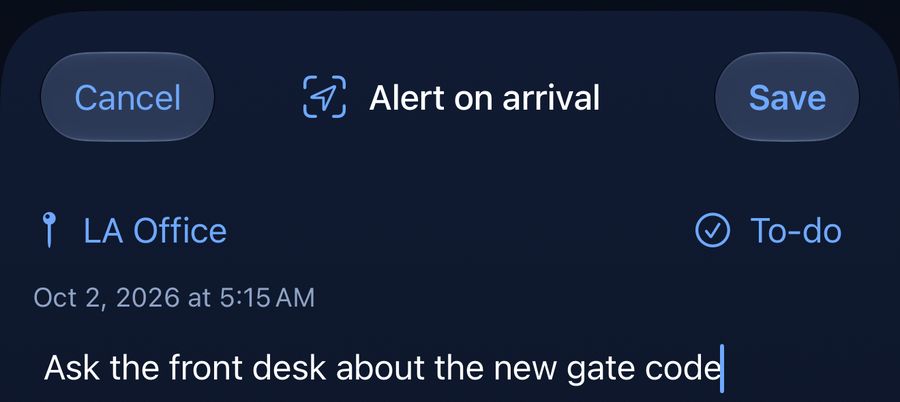
When you next arrive, the notification shows the place's name and your text. If several alerts are waiting at one place, it tells you how many.
An alert for every visit
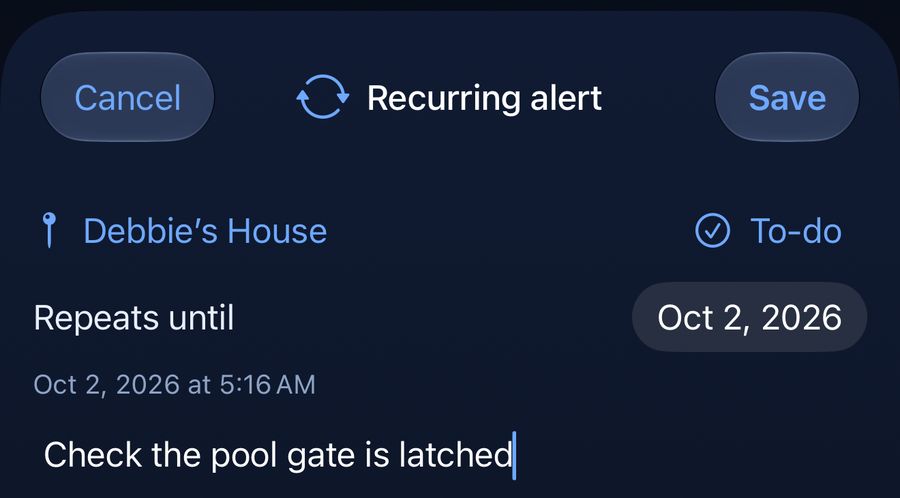
Choose Recurring alert instead. Next to Repeats until, tap Choose a day, then tap the date that appears and pick the last day. It comes back on every arrival through the end of that day.
6. Make a to-do
- In the feed, tap Action, then New action, then Item to be completed. (Or turn on To-do in any note.)
- Choose its place, type it, and tap Save.
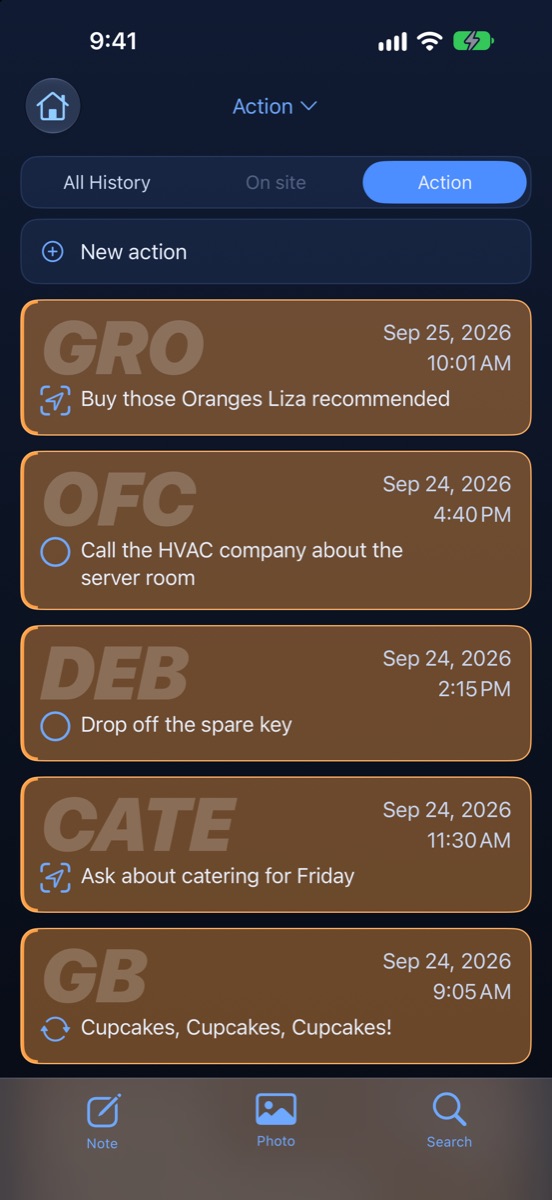
Open to-dos wait in the Action tab and on their place's page. When it's done, tap the circle at the left of its card. The card shows when it was completed. This cannot be undone.
7. Clear or stop an alert
A one-time alert
It clears itself once you have seen it: when you open it, or tap the circle on its card. Opening it early counts too, so a one-time alert you read before you arrive will not remind you when you get there.
A recurring alert
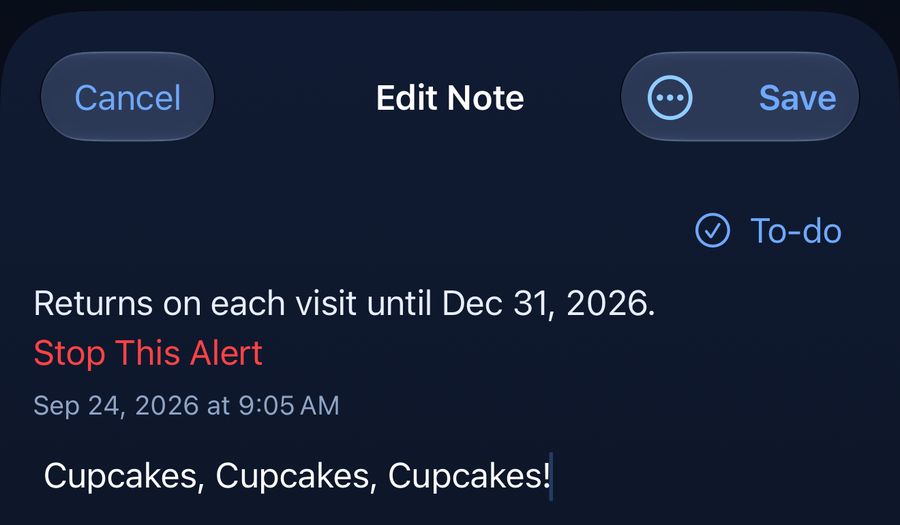
Opening it does not stop it. To stop it before its last day, tap its card to open it, then tap Stop This Alert. Stopping cannot be undone; to bring it back, make a new one.
8. Find your way around the feed
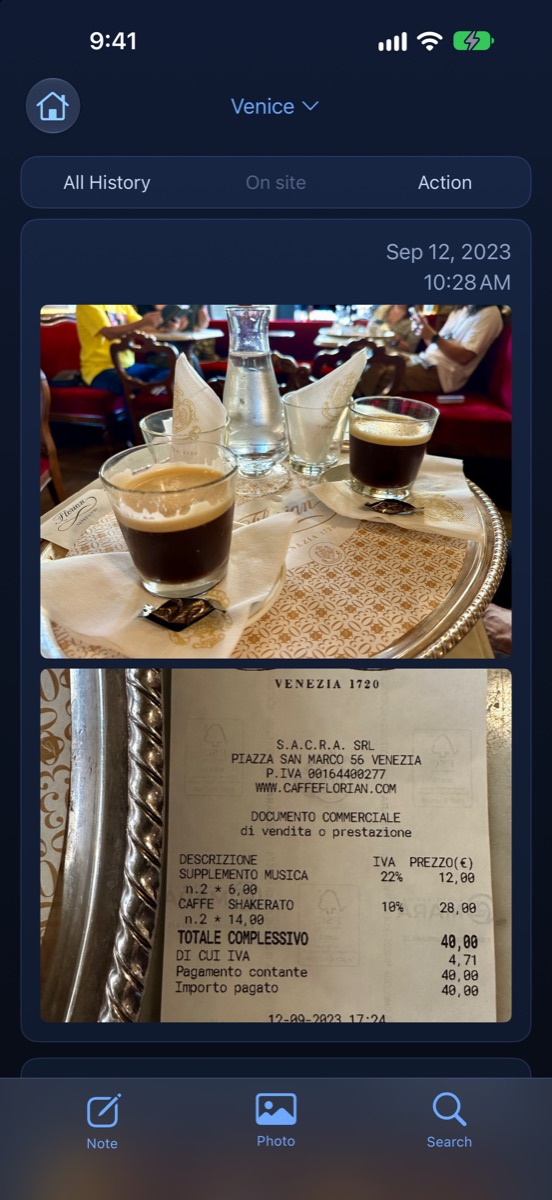
The feed shows your photos, videos and notes, newest first. Photos and notes made together at one place show up as one card; tap it to see them all.
- All History: everything, from every place.
- The middle tab shows the abbreviation of the place you are standing in, and only that place. It is greyed out when you are not at one of your places, or location is off.
- Action: open to-dos and alerts.
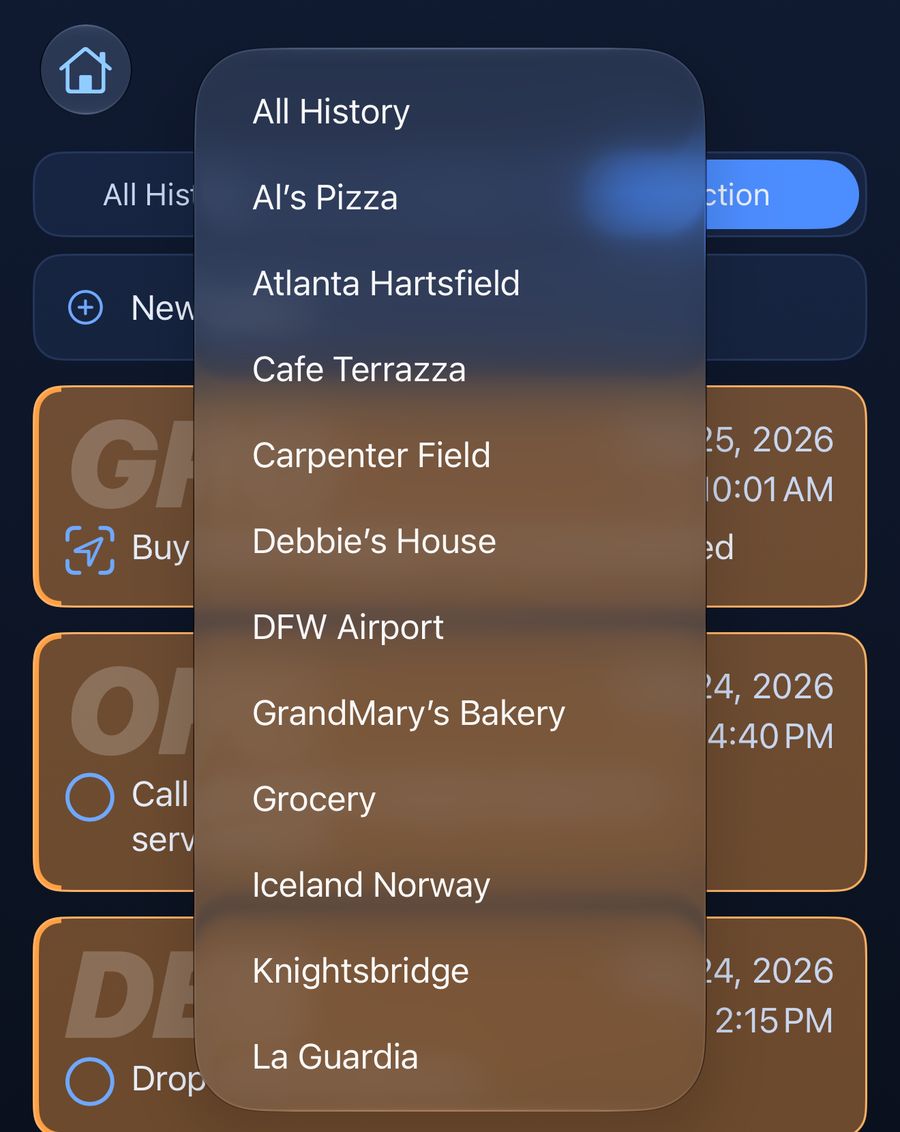
Tap the title at the top to jump to any one place, or back to All History. Where I am, at the bottom of that list, opens the place you are at.
To change how cards look, go to Home › Settings › Tile style: Overlay, Row (compact) or Gallery (big photos). Theme switches between Midnight Blue and Patrol Green.
9. Search
- Tap Search at the bottom of the feed.
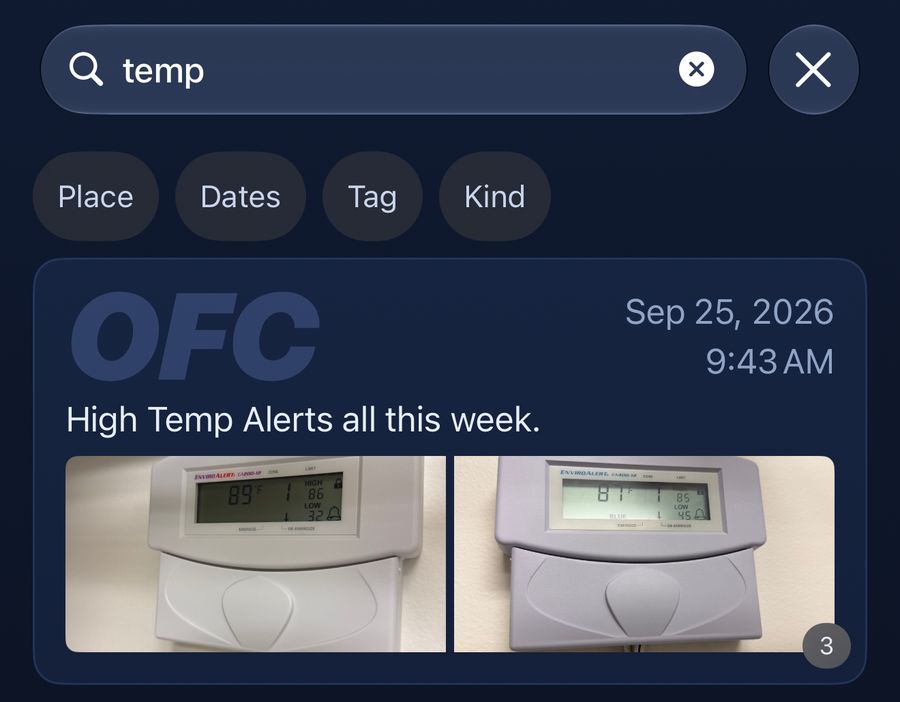
- Type words to find every note that contains them.
- Narrow it with the buttons under the search box: Place, Dates, Tag and Kind (photos, videos or notes). They work together, with or without words, so a place and a date range alone bring back everything from that place in that time.
Tap the x on a button to clear it.
10. The map
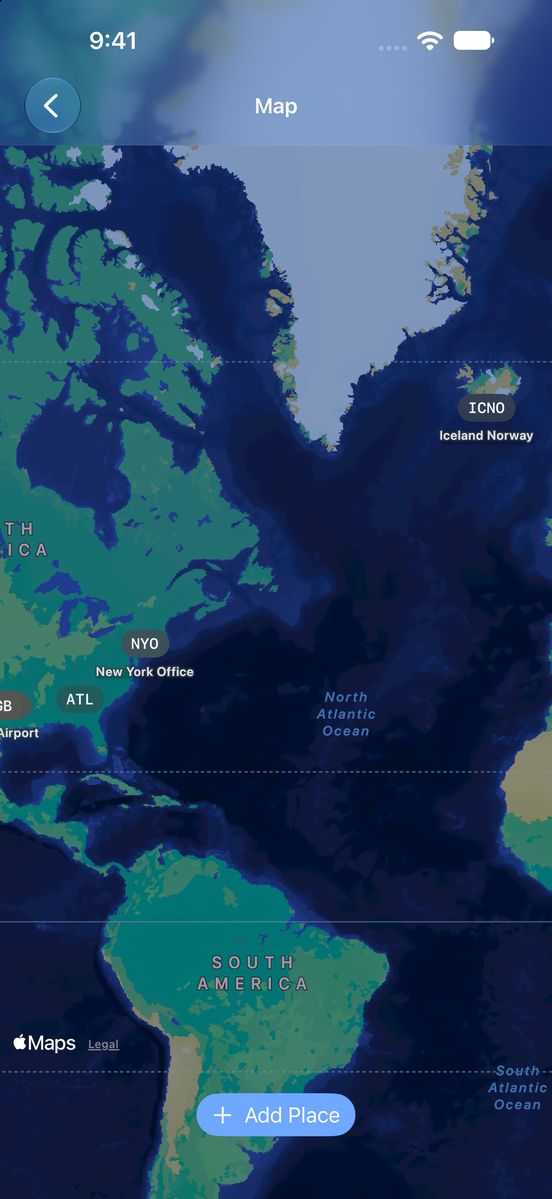
Home › Map shows all your places, each labelled with its abbreviation. Tap a label to see the place's name. If location is allowed, your own position shows as a blue dot. Add Place at the bottom starts a new place.
On a place's own page, tapping its small map opens this map centred on that place.
11. Get back something you deleted
Deleting a photo or note moves it to Recently Deleted, where it stays for 30 days.
- Go to Home › Settings › Recently Deleted. Each item shows how many days it has left.
- Swipe left on the item and tap Restore.
Delete Now, on the same swipe, removes it for good.
Deleting a place does not delete what was filed there: its photos and notes move to Needs filing, ready to be given another place. To hide a place you no longer visit without losing anything, archive it instead.
12. iCloud
When iCloud is on for Rondin, your places and records are saved to your own iCloud, encrypted by Apple, with nothing in between. That is your backup, and it is how a new iPhone signed in to the same Apple Account gets them. On a new phone, Rondin may show Looking for your places for up to two minutes while they arrive; if you are new, tap Set up a place now.
Rondin also works with iCloud off, on the phone alone. To turn it off, open the iPhone's Settings app, tap your name, then iCloud, and find Rondin among the apps using iCloud to switch it off.
Still stuck? See Support or email rondin@isgpatrol.com.